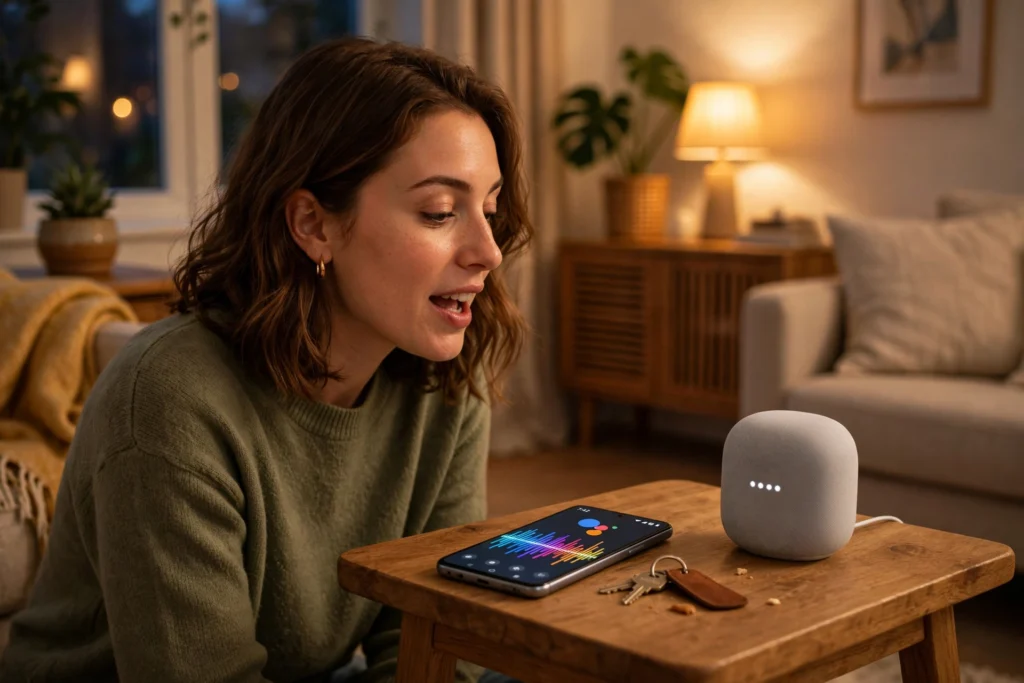
Google Assistant answers to more than 100 voice commands, from timers and alarms to smart lights and messages. Say “Hey Google” or “OK Google”, then the command. This list groups the most useful commands by what they do, says which device each one works on, and notes where Gemini has taken over from Assistant on newer Android phones in 2026.
How do you talk to Google Assistant?
Every command starts the same way. Say “Hey Google” or “OK Google”, wait for the tone or the coloured dots, then speak your request in plain language. You do not need to memorise exact wording: Assistant understands natural phrases, so “set a timer for ten minutes” and “start a ten minute timer” do the same job.
Assistant lives on Android phones, iPhones through the Google app, Google Home and Nest speakers and displays, some smart TVs, and Wear OS watches. The wake phrase works on all of them, but what you can do next depends on the device: a phone can send a text, a speaker cannot, and a smart display can show a recipe while a speaker can only read it out.
On a phone, you can also start Assistant without speaking: long press the home button on older Android phones, swipe up from a bottom corner on newer ones, or tap the microphone in the Google app. On a Google TV, press the microphone button on the remote. Before you use the commands below, check that Assistant is switched on, set up Voice Match for personal results such as your calendar, and set your phone language to the language you speak in.
What are the most useful Google Assistant commands?
These are the commands people use every day. They work on phones, speakers and smart displays unless the table says otherwise, and they are the fastest way to learn what Assistant can do.
| Say this | What happens | Works on |
|---|---|---|
| “What is the weather today?” | Reads out the local forecast | Phone, speaker, display, TV |
| “Will it rain tomorrow?” | Gives tomorrow’s rain forecast | Phone, speaker, display |
| “What time is it in Tokyo?” | Gives the time in another city | Phone, speaker, display, TV |
| “Set a timer for 10 minutes” | Starts a countdown timer | Phone, speaker, display, TV |
| “How much time is left on my timer?” | Reports the timer status | Phone, speaker, display |
| “Set an alarm for 7 AM” | Creates an alarm for 7 in the morning | Phone, speaker, display |
| “Wake me up at 6 AM every weekday” | Creates a repeating weekday alarm | Phone, speaker, display |
| “Remind me to call the bank at 3 PM” | Sets a reminder for 3 PM | Phone, speaker, display |
| “What is 15 percent of 450?” | Works out the sum for you | Phone, speaker, display, TV |
| “Convert 10 miles to kilometres” | Converts the distance | Phone, speaker, display |
| “How do you say thank you in Spanish?” | Translates and speaks the phrase | Phone, speaker, display |
Reminders are more flexible than alarms. You can set one for a time, a place or a person: “remind me to buy milk when I get home” fires when your phone detects you are home, and it works best on a phone with location history switched on.
Which commands control your phone hands-free?
Hands-free phone control is where Assistant earns its keep, especially while driving or cooking. These commands work on Android phones, and some work on iPhones through the Google app, though iPhone support is more limited because Apple restricts what other assistants can do.
For calls and messages, say “call Mum” to ring the contact by the name saved in your phone. Say the name exactly as it is saved, or Assistant may call the wrong person. “Send a WhatsApp message to Bilal saying I am on my way” sends the message after Assistant reads it back for confirmation. “Text Sara: see you at 5” sends a text message. “Read my messages” reads unread messages aloud and offers to reply, which is useful in the car.
For your calendar, say “what is on my calendar today?” to hear your schedule, or “what is my first event tomorrow?” to check the next day. “Add a meeting with John tomorrow at 3 PM” creates the event, and “cancel my 5 PM call on Friday” removes it. These need Voice Match and access to your Google Calendar.
For apps and settings, say “open Spotify” or “open the camera” to launch an app by name. “Turn on Wi-Fi”, “turn on Bluetooth” and “turn on Do Not Disturb” change phone settings by voice, though some settings commands vary by phone model. Say “where is my phone?” from a speaker to make your phone ring, even if it is on silent.
What can Google Assistant do in your smart home?
Smart home control is the area where a speaker beats a phone. You can control lights, heating, locks and cameras from across the room, and you can control a whole room at once. Every command below needs a compatible device linked in the Google Home app first: a light that is not linked cannot be switched by voice.
| Say this | What happens | Needs |
|---|---|---|
| “Turn off the living room lights” | Switches off the lights in that room | Smart lights linked in Google Home |
| “Turn on the bedroom lamp” | Switches on one named light | Smart light with that name |
| “Dim the kitchen lights to 50 percent” | Sets the brightness | Dimmable smart lights |
| “Set the thermostat to 21 degrees” | Sets the heating temperature | Smart thermostat |
| “Lock the front door” | Locks a smart lock | Smart lock, with a PIN for unlocking |
| “Show me the front door camera” | Shows the camera feed on a display or TV | Smart camera and a display or TV |
| “Turn off all the lights” | Switches off every linked light | Smart lights in the home |
| “Broadcast dinner is ready” | Plays the message on every speaker | More than one Google speaker |
Room names matter more than device names. Assign each device to a room in the Google Home app, and “turn off the lights” in the kitchen controls only the kitchen lights. Without room assignments, the same command tries to control every light in the house.
Broadcast is the most overlooked smart home command. Say “broadcast” followed by any message, and it plays on every Google speaker and display in the house, so “broadcast time for school” reaches the children’s rooms without shouting up the stairs. It works from a phone too, as long as the speakers share the same home in the Google Home app.
One safety rule: unlocking a smart door by voice needs a spoken PIN, because anyone through the letterbox could otherwise shout a command. Keep that PIN private and do not use your birthday or house number.
How do you play music, podcasts and videos by voice?
Music and media commands are simple, but they work best when you name the service. Without a service name, Assistant uses your default music app, which you set in the Assistant settings under Music. Set a default once, and every music command follows it.
| Say this | What happens |
|---|---|
| “Play some jazz” | Plays jazz on your default music app |
| “Play rock music on Spotify” | Plays rock on Spotify |
| “Play my workout playlist” | Plays a playlist by name |
| “Play the news” | Plays a news briefing from your chosen sources |
| “Pause the music” | Pauses playback |
| “Play the next song” | Skips to the next track |
| “Set the volume to 40 percent” | Sets an exact volume level |
| “Play Stranger Things on Netflix” | Opens the show on a linked TV |
Video commands need a screen. “Play Stranger Things on Netflix” works on a TV with Chromecast built in or a Chromecast dongle, and on a smart display for YouTube videos. On a speaker with no screen, the same command will fail or offer to play it on a linked TV instead.
Assistant has a lighter side too. If you like voice tricks, our guide to Harry Potter spells for Google Assistant lists every spell that works by voice, including Lumos for the torch and Nox to switch it off again. The spell commands work alongside the everyday commands in this list, and they are a good way to test whether Voice Match and the microphone are working properly.
What are the best Google Assistant commands for travel and directions?
Travel commands pull live data from Google Maps and your Gmail, so they are most useful when your home and work addresses are saved in Google Maps and your bookings are in your email.
For directions, say “navigate home” to start navigation to your saved home address, or “navigate to the nearest petrol station” for the closest option. “How long will it take to get to work?” gives the drive time with current traffic. For public transport, say “when is the next train to London?” to get times and routes.
For flights and trips, say “what is the status of my flight to Malaga?” to hear delays or gate changes, using the booking details in your Gmail. “How much is 50 pounds in euros?” converts currency on the spot. Flight answers only work if the details are in the Gmail account linked to Assistant.
What is the difference between Google Assistant and Gemini in 2026?
This is the question most command lists published before 2025 get wrong, because the answer has changed. In 2026 Google is replacing Assistant with Gemini on eligible Android phones, and introducing Gemini for Home on Google Home and Nest speakers and displays. The change is rolling out by device, account, language and country, so two identical phones can behave differently on the same day.
On a phone that has switched to Gemini, saying “Hey Google” opens Gemini instead of the old Assistant. The everyday commands in this list still work: timers, alarms, calls, messages and smart home control all carry over. What changes is the conversation. Gemini can handle longer requests, such as “remind me to buy the ingredients for the pasta I made last month”, and it can summarise your emails or draft a reply. It can also misunderstand a short command that the old Assistant handled instantly, because it tries to interpret rather than match a fixed phrase.
On speakers and displays, the change is slower. Gemini for Home is being introduced on Google Home and Nest devices, but many speakers still run the classic Assistant. Keep using the commands in this list, because they are the ones Google has carried over, and test any daily Routine after an update rather than assuming it still works.
How do you set up Routines to chain commands together?
A Routine runs several actions from one phrase, so a single command can do a morning’s worth of jobs. Routines live in the Google Home app under Automations, then Routines, or in the Google app under Assistant settings.
Start with a ready-made Routine. The “Good morning” Routine already exists on most devices: say “Hey Google, good morning” and it reads the weather, your calendar and the news. The “Bedtime” Routine turns off the lights, sets an alarm and switches on Do Not Disturb. To build your own, open the Google Home app, tap Automations, then Add, then Personal Routine. Add a starter phrase, such as “I am leaving”, then add actions in order: turn off all the lights, set the thermostat to 16 degrees, and lock the front door. Save it, then test it.
Routines can also fix gaps in the command list. Our Harry Potter spells guide shows how a Routine gives the spell Lumos Maxima its own job, switching the torch on at full brightness, which the built-in Lumos command does not do. One limit to know: Routines that read your messages sometimes need the phone unlocked first.
How do you keep Google Assistant private?
Assistant hears you only after the wake phrase, or after you press the microphone button. It does not record everything in the room. But it does keep a history of your commands, and you can control what happens to that history.
The main control is in your Google account, under Data and Privacy, then Web and App Activity. Here you can turn on auto-delete for your Assistant history, so commands older than 3, 18 or 36 months are deleted automatically, and you can delete single commands by saying “Hey Google, delete what I just said”. To review everything, open myactivity.google.com and filter by Assistant.
Voice Match is a privacy tool as well as a convenience. Without it, anyone in the room can ask for your calendar or messages and hear the answer. With it, personal results only come back when Assistant recognises your voice. Google Home and Nest speakers also have a physical microphone switch on the back, and no voice command can turn it back on.
Why is Google Assistant not responding?
When Assistant stops answering, the cause is usually one of four things, and you can check them in order.
First, check the microphone. On a speaker, make sure the microphone switch on the back is on and the device is plugged in. On a phone, check that the Google app has microphone permission in Settings, then Apps, then Google, then Permissions. Second, check the internet: Assistant needs a connection for almost every command. If the speaker cannot reach the internet, restart your router, then unplug the speaker for 10 seconds and plug it back in.
Third, check the language and Voice Match. If your phone language is set to English (US) but you speak with a strong regional accent, switch it to English (UK) in the Assistant settings. If Assistant answers other people but not you, retrain Voice Match in a quiet room. Fourth, check for an update: on phones that have switched to Gemini, an old Google app version can break commands, so update the Google app and the Google Home app from the Play Store. If none of these fix it, restart the device. If it still fails, the cause is usually a Google-side outage or a rollout change, and the command often starts working again within a day.
If one particular spell or fun command does nothing while the everyday commands work, the answer is usually that it was never a built-in command. Our guide to the Lumos Maxima torch command explains which Harry Potter spells work out of the box, which need a Routine, and which do nothing at all.
Frequently asked questions
What is the wake word for Google Assistant?
“Hey Google” or “OK Google”. Say either phrase, wait for the tone, then speak your command. There is no way to change the wake word to another word.
Does Google Assistant work without internet?
Almost every command needs the internet, because the speech is processed on Google servers. A few on-device commands, such as turning the torch on, may work offline on some phones, but do not rely on it.
Can Google Assistant work on an iPhone?
Yes, through the Google app. Open the app and tap the microphone, or add the Assistant widget to your home screen. Some commands, such as changing phone settings, do not work on iPhones because Apple restricts them.
Is Google Assistant being replaced by Gemini?
Yes, on eligible Android phones Google is replacing Assistant with Gemini, and Gemini for Home is coming to speakers and displays. The everyday commands in this list still work, but the change rolls out gradually by device and account.
How do I stop Google Assistant listening?
Use the physical microphone switch on a Google speaker, or switch off the microphone permission for the Google app on a phone. You can also delete your history and turn on auto-delete in your Google account settings.