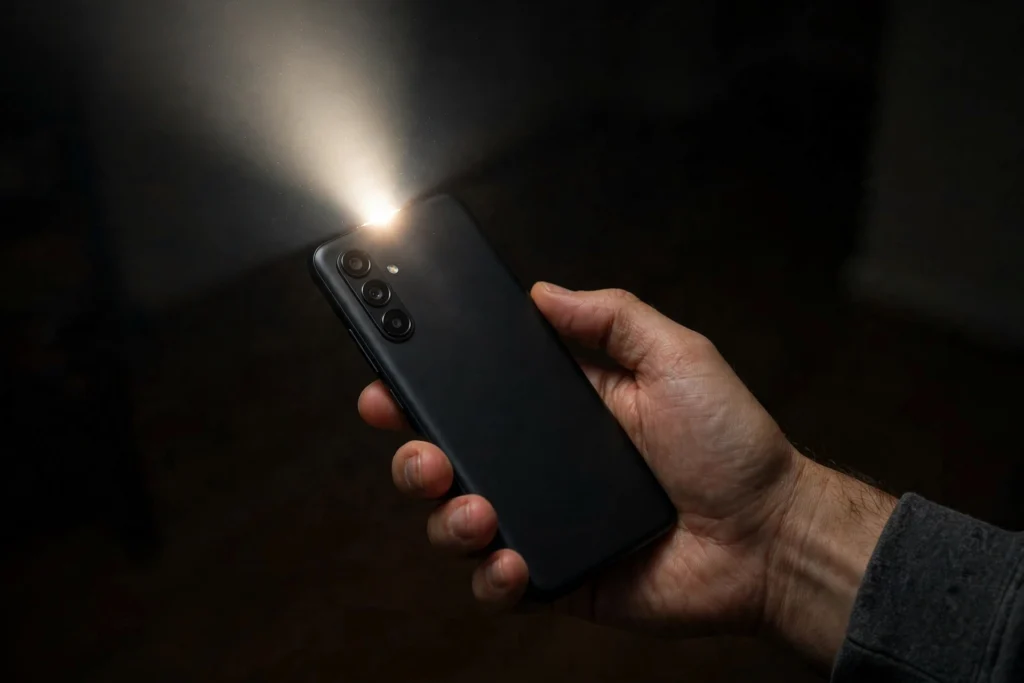
Featured snippet answer
Lumos turns on your phone torch, Nox turns it off, and Silencio mutes your phone. Say “Hey Google” first, then the spell name. Accio opens an app when you add its name, for example “Accio Spotify”. Other spell names, such as Avada Kedavra and Expelliarmus, do not trigger actions. For those, set up a Routine in the Google Home app.
The short answer
Yes, you can cast Harry Potter spells on your Android phone. Say “Hey Google, Lumos” and your torch switches on. Say “Hey Google, Nox” and it switches off again. Say “Hey Google, Silencio” and your phone goes quiet. These three spells work out of the box on most Android phones with Google Assistant set up. A few more work if you add the name of an app, such as “Hey Google, Accio Spotify”, which opens Spotify. Everything else, including the famous curses and charms from the films, either needs a Routine that you build yourself or does not work at all. This guide lists all the Harry Potter spells for Google Assistant, shows you how to set them up, and explains what to do when a spell does nothing.
Which Harry Potter spells work with Google Assistant?
Google first added Harry Potter spells to its phones in 2016. Only a small number work as built-in voice commands. The rest need a Routine, which is a custom voice command you create yourself, or they do nothing at all. Start with the three below, because these are the ones that work straight away.
| Spell | What it does | Say this |
|---|---|---|
| Lumos | Switches on your phone torch | “Hey Google, Lumos” |
| Nox | Switches off your phone torch | “Hey Google, Nox” |
| Silencio | Silences your phone | “Hey Google, Silencio” |
| Accio, plus an app name | Opens the app you name | “Hey Google, Accio Spotify” |
| Lumos Maxima | Usually switches on the torch, like Lumos | “Hey Google, Lumos Maxima” |
Lumos is the wand-lighting charm in the books and films, and on your phone it does exactly what you would expect: it turns on the torch. Nox is its counter-charm, and it turns the torch off again. Silencio is the silencing charm, and on your phone it silences calls and notifications. Accio is the summoning charm, and Google Assistant treats it as a way to summon an app. Say “Accio Spotify” and Spotify opens. Say “Accio WhatsApp” and WhatsApp opens. The pattern works with most apps installed on your phone.
Lumos Maxima deserves a note of its own. In the films it is a brighter, stronger version of Lumos. On an Android phone it is not a separate built-in command. Saying it usually switches the torch on in the same way Lumos does, because Assistant hears the word Lumos inside it. If you want Lumos Maxima to mean something different, for example switching the torch on at full brightness, set that up as a Routine. The Routines section below shows you how.
How do you set up Google Assistant so the spells work?
The spells only work if Google Assistant is switched on and trained to recognise your voice. If you have never set it up, follow these steps first. They take about two minutes.
- Open the Google app on your Android phone.
- Tap your profile picture, then tap Settings.
- Tap Google Assistant, then tap “Hey Google and Voice Match”.
- Switch on “Hey Google” if it is off.
- Say “Ok Google” three or four times when the phone asks you to, so it learns your voice.
- Try a spell. Say “Hey Google, Lumos” and watch for the torch.
If the phone does not respond to “Hey Google” at all, check two things before anything else. First, make sure your phone language is set to English, because the spells are tied to the English command set. Second, check that the Google app is updated to the latest version from the Play Store. An old version of the app is one of the most common reasons a spell fails.
A note for owners of newer Android phones: Google is replacing Google Assistant with Gemini on newer devices. The spells still work when Assistant handles the request. If Gemini answers instead and does not recognise a spell, open the Google app and try the spell there, or check in your phone settings that Google Assistant is still set as your default digital assistant.
Which spells can you add yourself with Routines?
A Routine is a custom voice command. You choose the words that trigger it and the action that follows. This is how you make spell names work that Google did not build in. You create Routines in the Google Home app.
- Open the Google Home app.
- Tap Automations, then tap Add, then tap Personal Routine.
- Under “Starters”, tap “Add starter”, choose “When I say to Google Assistant”, and type the spell, for example “Sonorus”.
- Under “Actions”, tap “Add action” and choose what should happen, for example “Set media volume to 80 percent”.
- Save the Routine, then say “Hey Google, Sonorus”.
Here are the most useful spell Routines to build.
| Spell | Action to set | Why it works well |
|---|---|---|
| Sonorus | Set media volume to 80 percent | Sonorus is the amplifying charm in the books. Louder volume is a natural match. |
| Muffliato | Set media volume to 0 percent | Muffliato fills the ears of people nearby with a buzzing sound. On your phone, silence is the closest match. |
| Lumos Maxima | Turn on torch at full brightness | Gives Lumos Maxima its own job, separate from plain Lumos. |
| Quietus | Turn on Do Not Disturb | Quietus is the counter-charm to Sonorus. Do Not Disturb is the phone version of it. |
| Alohomora | Unlock your phone | Alohomora is the unlocking charm. See the warning below before you set this one up. |
| Accio, plus an app name | Open the app you name | Works out of the box for most apps, but a Routine makes it reliable for apps Assistant does not recognise. |
A warning about Alohomora: unlocking your phone by voice is only possible if your phone supports unlocking with Voice Match, and Google has removed voice unlocking from newer versions of Android. On most modern phones this Routine will not unlock the handset, and that is a security feature, not a fault. Do not weaken your lock screen to make a novelty command work. If the phone asks for a PIN, fingerprint or face instead, leave it that way.
Routines are also the answer if a spell works sometimes but not always. A Routine gives Assistant an exact instruction tied to your exact words, so it does not have to guess what you meant. Keep the trigger words short and say them clearly. “Sonorus” works better than “Sonorus, turn the volume up a bit please”.
Which spells do not work, and why do people think they do?
Several spell names appear in listicles about Google Assistant, but they are not built-in commands. If you say one of these, Assistant will usually give a playful reply, or tell you it cannot help, and nothing on your phone will change. That is normal. The spells are:
- Avada Kedavra. The Killing Curse. It does nothing on your phone, and it should not. Some listicles include it in spell lists without saying that it triggers no action.
- Crucio. The Cruciatus Curse. Same story. No action is tied to it.
- Expelliarmus. The disarming charm. Assistant does not disarm anything, and there is no phone action that matches it.
- Wingardium Leviosa. The levitation charm. Your phone will not levitate, and no setting changes when you say it.
- Alohomora, said on its own without a Routine. See the warning above. As a plain voice command it does not unlock a modern phone.
- Imperio. The Imperius Curse. No action is tied to it.
If you want one of these words to do something, build a Routine for it, exactly as described above. For example, you could make Expelliarmus switch off Bluetooth, or Wingardium Leviosa turn on auto-rotate. The spell name is just a trigger word. The action is whatever you choose. That is the honest answer: the magic is the Routine, not the word.
Do Harry Potter spells work on iPhone with Siri?
The same idea works on iPhone, with Siri instead of Google Assistant. Three spells work out of the box.
- “Hey Siri, Lumos” switches on the torch.
- “Hey Siri, Nox” switches it off.
- “Hey Siri, Accio Spotify” opens Spotify, and the same pattern works with other apps.
Two more work if you build them in the Shortcuts app, which is the iPhone version of a Routine.
- Lumos Maxima: add a “Set Flashlight” action, set it to turn on, and move the brightness slider to maximum.
- Silencio: add a “Set Focus” action, set it to turn on Do Not Disturb until you turn it off.
The difference between the two phones is small. Android owners get Silencio built in, while iPhone owners need a Shortcut for it. iPhone owners get Accio built in, just like Android owners. The Lumos and Nox spells work the same on both.
| Feature | Google Assistant (Android) | Siri (iPhone) |
|---|---|---|
| Lumos (torch on) | Works out of the box | Works out of the box |
| Nox (torch off) | Works out of the box | Works out of the box |
| Silencio (mute) | Works out of the box | Needs a Shortcut |
| Accio plus app name | Works out of the box | Works out of the box |
| Lumos Maxima | Works like Lumos, or set a Routine | Needs a Shortcut |
| Custom spells | Google Home Routines | Shortcuts app |
Why might a spell not work?
If you say a spell and nothing happens, work through this list before deciding the spell is broken. Most failures have a simple cause.
- Voice Match is off. Open the Google app, go to Settings, then Google Assistant, then “Hey Google and Voice Match”, and switch it on. Train your voice again if the phone keeps ignoring you.
- You are saying “Ok Google” but the phone is listening for “Hey Google”, or the other way round. Both wake words should work, but if one fails, try the other.
- Your phone language is not set to English. The spells are English commands. Change the language in Settings, then try again.
- The Google app is out of date. Update it from the Play Store and try again.
- Battery saver is on. Some phones limit background listening when battery saver is active. Switch it off and try again.
- The phone is locked and the spell needs the screen on. Lumos and Nox usually work from the lock screen, but Routines sometimes need the phone unlocked first. Unlock the phone and try again.
- You are using Gemini instead of Google Assistant. On newer phones, Gemini may answer instead of Assistant. Open the Google app and say the spell there, or check your default assistant setting.
- Background noise is drowning out your voice. Move somewhere quieter and say the spell clearly, at normal volume. Shouting does not help. Clear speech does.
If Lumos works but Silencio does not, the most likely cause is that your phone model handles the silence command differently. Some phones mute media volume instead of silencing calls. Try “Hey Google, turn on Do Not Disturb” to check whether that command works, then build a Routine that ties Silencio to it.
If Accio opens the wrong app, say the full app name clearly, for example “Accio Spotify” rather than just “Accio”. If Assistant still opens the wrong app, build a Routine with the exact app name as the trigger and the “open app” action.
Frequently asked questions
Does “Ok Google, Lumos” really turn on the torch?
Yes. Say “Ok Google, Lumos” or “Hey Google, Lumos” and the torch switches on, on most Android phones with Google Assistant set up. Say “Nox” to switch it off again. Both spells have worked since Google added them in 2016.
What Harry Potter spells work on Google Assistant?
Lumos, Nox and Silencio work out of the box. Accio works when you add an app name, such as “Accio Spotify”. Lumos Maxima usually works like Lumos. Every other spell name needs a Routine that you build yourself in the Google Home app.
Can I use Harry Potter spells on my iPhone?
Yes. “Hey Siri, Lumos” switches on the torch, “Hey Siri, Nox” switches it off, and “Hey Siri, Accio Spotify” opens Spotify. Lumos Maxima and Silencio need Shortcuts, which you build in the Shortcuts app.
Why does “Ok Google, Lumos Maxima” not work for me?
Lumos Maxima is not a separate built-in command on Android. Saying it usually triggers the same action as Lumos. If nothing happens, check that Voice Match is on and that the Google app is updated. If you want Lumos Maxima to do something different, such as torch at full brightness, set it up as a Routine.
Is there a spell to unlock my phone?
Alohomora is the unlocking charm in the books, but on a modern Android phone it does not unlock the handset by voice. Google removed voice unlocking from newer versions of Android. This is a security feature. Use your PIN, fingerprint or face instead.
Do these spells work on a Google Nest speaker?
Lumos, Nox and Silencio are phone commands, because they control the phone torch and the phone volume. A Nest speaker has no torch, so Lumos does nothing useful there. Routines that control smart lights work on speakers, so you could make “Lumos Maxima” switch on all the lights in a room through a Routine.
Conclusion
Three spells work out of the box with Google Assistant: Lumos, Nox and Silencio. Accio works when you name an app. Everything else is either a Routine waiting to be built or a spell name with no action behind it. Set up Voice Match first, try the three built-in spells, then build one or two Routines for the spells you actually want, such as Sonorus for volume or Lumos Maxima for full brightness. That is the whole trick. The fun is real, the setup takes minutes, and once it works, saying a spell beats digging through settings every time.
If you want more phone tricks, read our guide to the Lumos Maxima torch command next: Ok Google Lumos Maxima: Turn Your Flashlight On Like Magic!. It covers the torch command in detail, including how to set it up on iPhone with Shortcuts. You can also browse the full Technology archive for more guides.