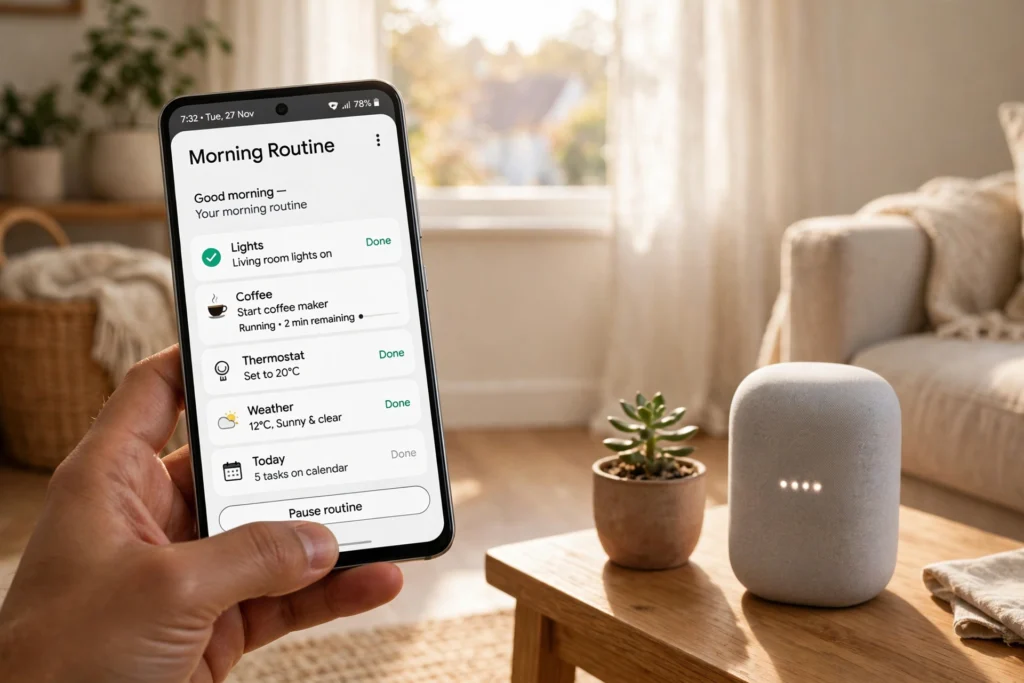
Direct answer: A Google Assistant routine runs several actions from one trigger, such as a voice command or a time of day. Beginners should start with the six ready-made routines in the Google Home app: Good morning, Bedtime, Leaving home, I am home, Commuting to work, and Commuting home. Edit one to fit your day first, then build a custom routine.
Most people use Google Assistant one command at a time. You ask for the weather, then ask for your calendar, then ask it to play music. A routine folds all of that into a single phrase. Say “Hey Google, good morning” and your lights switch on, the weather is read out, your calendar is listed, and the news starts playing.
This guide is for beginners. It explains what routines are, shows you how to set one up in the Google Home app, walks through the six ready-made routines worth using first, and gives you five custom routine ideas to try next. It also covers what happens to routines now that Gemini is replacing Google Assistant, and how to fix a routine that does not run. If you want the commands a routine can use, our Google Assistant voice commands list covers them by category.
What is a Google Assistant routine?
A routine is a set of actions that Google Assistant runs when something starts it. That starting point is called a starter, and the things that happen are called actions. One starter can run many actions in order. You might set a starter of 7.00 a.m. on weekdays and actions that turn on the bedroom light, read the weather, list your first calendar event, and start your morning playlist.
There are two types of routine, and the difference matters before you build anything.
There are two types. Personal routines belong to your Google account and can use your personal results, such as your calendar, reminders, and usual commute. Household routines belong to the home in the Google Home app: any household member can start them, and they are meant for shared devices such as lights, plugs, and thermostats. Google warns they are for convenience only, not for safety or security critical uses.
| Feature | Personal routine | Household routine |
|---|---|---|
| Who can use it | Only you, on your account | Any member of the household |
| Personal results | Yes, calendar, reminders, commute | No, shared devices only |
| Best for | Morning briefing, bedtime, focus time | Lights at sunset, porch light, announcements |
| Where you build it | Google Home app, Automations | Google Home app, Automations |
| Typical starter | Voice command or alarm dismissed | Time of day or a device state |
Routines can start from a voice command, a time and days, sunrise or sunset, a dismissed alarm, or a device state, such as a light switching on. The exact starters you see depend on your devices, settings, and region, because routines are only available in selected regions and languages.
How do you set up a Google Assistant routine?
Routines live in the Google Home app, under Automations. The steps below follow the current layout; on an older version of the app the same screens may sit under a different name.
- Open the Google Home app on your phone and check you are signed in with the account that owns your home.
- Tap Automations in the bottom navigation bar.
- Tap the Add button, then choose Personal routine or Household routine.
- Tap Add starter and pick how the routine begins: a voice command, a time, sunrise or sunset, or when an alarm is dismissed.
- Tap Add action and choose what should happen. Add as many actions as you need, in the order you want them.
- Tap Save, then test the routine by saying the trigger phrase or waiting for its time.
Start with a ready-made routine before you build your own: tap one, look at the actions Google filled in, and change only what does not fit your day.
What are the best Google Assistant routines for beginners?
The six ready-made routines cover most of a normal day. They are already built, so you only need to switch them on and adjust them.
| Routine | Trigger phrase | What it does |
|---|---|---|
| Good morning | “Good morning”, “Tell me about my day”, “I am up” | Turns on lights, reads weather and calendar, plays news |
| Bedtime | “Bedtime”, “Good night” | Sets alarm, silences phone, plays sleep sounds |
| Leaving home | “I am leaving”, “I am heading out” | Switches off lights, adjusts thermostat, starts navigation |
| I am home | “I am home”, “I am back” | Switches on lights, reads reminders, plays music |
| Commuting to work | “Let us go to work” | Reads traffic, calendar and reminders for the journey |
| Commuting home | “Let us go home” | Reads traffic home, reads texts, plays a podcast |
Good morning
This is the routine most beginners should set up first. Say “Good morning” and it can turn on your lights, tell you the weather, list your calendar events, and play the news. You can also set it to run when you dismiss a morning alarm. Keep it short: weather, calendar, and one news source is enough.
Bedtime
The bedtime routine is the simplest and the most useful one on the list. Say “Bedtime” and it asks what time to set your alarm, silences your phone, and plays sleep sounds. It can also suggest charging your phone if the battery is low. Add a reminder of tomorrow’s first event if you like, but leave the rest out.
Leaving home
Say “I am leaving” as you walk out and the routine can switch off the lights, turn down the thermostat, and start navigation to your next destination. It is a good first household routine if you share a home, because the actions affect shared devices rather than your personal account. Check it only switches off the lights you mean.
I am home
The mirror image of leaving home. Say “I am home” and the lights come on, your reminders are read out, and music starts playing. It works best on a speaker in the room you walk into. If you live with other people, keep it to lights and music, and leave calendar and messages to your personal routines.
Commuting to work
Say “Let us go to work” and the routine reads your traffic conditions, your calendar, and your reminders for the day. You need your home and work addresses saved in your Google account for the traffic part to work. If you work from home, skip this routine and use the focus-time idea in the custom section below instead.
Commuting home
Say “Let us go home” and the routine gives a traffic update for the journey back, reads your unread texts, and starts a podcast or playlist. It is the best routine for the drive home because it keeps your hands off your phone. Reading texts aloud only works when the phone is unlocked or you have allowed personal results on the device.
How do you build your first custom routine?
Once a ready-made routine feels natural, build one custom routine. Pick a moment in your day that repeats, with three or four steps you always do in the same order. A focus-time routine is a good first build because it needs no smart home devices.
Here is a worked example. The starter is the voice command “Focus time”. The actions are: turn on Do Not Disturb, set a timer for 50 minutes, and play a focus playlist. When the timer ends, Do Not Disturb switches off again if you add a delayed action.
- In the Google Home app, go to Automations and tap Add, then Personal routine.
- Tap Add starter, choose Voice command, and type “Focus time”.
- Tap Add action, choose Adjust phone settings, and select Turn on Do Not Disturb.
- Add another action for a timer, then one to play your playlist.
- Tap Save, then say “Hey Google, focus time” to test it.
If an action you want is not in the list, use the custom action option and type the command as you would say it. Google Assistant will run it exactly as typed. That is how you add things the ready-made action list does not cover, such as asking for a specific playlist or sending a message. For ideas on what to add, see the full Google Assistant voice commands list. Our Harry Potter spells for Google Assistant guide shows the same idea in a fun form: a routine can run the Lumos spell to switch the torch on as one of its actions.
| Custom routine | Starter | Actions |
|---|---|---|
| Focus time | Say “Focus time” | Do Not Disturb on, 50-minute timer, focus playlist |
| Movie night | Say “Movie night” | Dim lights, switch TV on, silence phone |
| Workout | Say “Time to work out” | Play workout playlist, read today’s step count, start timer |
| Lights at sunset | Sunset, every day | Turn on living room lights and porch light |
| School run | 7.30 a.m., weekdays | Read weather, read traffic, remind about packed bags |
Do Google Assistant routines still work now that Gemini is taking over?
Yes, with one honest caveat. Google began removing Google Assistant from Android phones on 4 September 2026, replacing it with Gemini. On speakers and smart displays the replacement is called Gemini for Home, and Google has set 2 August 2027 as the date Assistant stops working on those devices, a date reported on 20 November 2026 from a post on Google’s Home support blog.
For routines, the news is good. Routines, device names, and household members carry over when a home switches to Gemini for Home, and time-based and voice-triggered routines continue to run. Google’s own support pages list custom actions for both Gemini for Home and Google Assistant, which shows routines are part of the new setup, not a leftover. The caveat is on phones: some older Assistant routines and very old third-party Actions have no direct equivalent in Gemini, so it is worth screenshotting your routines before your phone switches, just in case one needs rebuilding.
Why is my Google Assistant routine not working?
Most routine problems have a boring cause. Work through this list before you delete the routine and start again.
- The trigger phrase does not match. Say the starter exactly as you typed it. “Good morning” and “Morning” are different triggers.
- Digital Wellbeing is blocking it. Google’s help pages warn that if you set up Digital Wellbeing, routines can be restricted by Downtime, filters, or Do Not Disturb. Check Downtime hours first if a routine fails at night.
- Personal results are switched off. Routines that read your calendar, texts, or reminders need personal results allowed on that device. On a shared speaker, this is often off by default.
- The phone is locked. Some actions, such as reading texts or opening apps, need the phone unlocked. Set the routine to run on a speaker instead, or allow personal results on the lock screen.
- The device is not in the routine. Actions that control lights or speakers run on the device you picked when you built the routine. If you built it for the bedroom speaker, it will not run on the kitchen one.
- Your home and work addresses are missing. Commute routines need both addresses saved in your Google account. Google asks for them the first time you use the routine.
If one action fails but the rest run, the problem is that action, not the routine. Remove it, save, and test again. One bad step can block everything after it.
Frequently asked questions
What is the best Google Assistant routine for beginners?
The Good morning routine. It needs no smart home devices, it runs every day, and it teaches you how starters and actions work. Set it to read the weather and your calendar first.
Are Google Assistant routines free?
Yes. Routines are free in the Google Home app. You only pay for the devices you add, such as smart bulbs or speakers. Gemini Live, the conversational mode on Gemini for Home, needs a Google Home Premium subscription, but routines themselves do not.
Can I use Google Assistant routines without smart home devices?
Yes. Many useful routines need only your phone: a morning briefing, a bedtime routine, or a focus timer. Smart home devices add lights and thermostats, but they are not required.
How many routines can I create?
Google does not publish a limit. Start with the six ready-made routines and add custom ones one at a time, so you can tell which ones you actually use.
Do routines work on iPhone?
Routines are set up in the Google Home app, which runs on iPhone, and they can run on Google Home and Nest speakers. Phone-only actions, such as changing Android settings, are not available on iPhone.
Will my routines stop working when Gemini replaces Google Assistant?
No, not as a rule. Routines carry over to Gemini for Home on speakers and displays, and time-based and voice-triggered routines keep running. A small number of older phone routines may need rebuilding.
Start small. Switch on the Good morning routine tonight, adjust it tomorrow, and add the Bedtime routine the same week. Once those two feel automatic, build one custom routine for a moment in your day that repeats.